Simulator
Overview
The SDK supplies a glasses simulator that can display the generated symbolics without the need to wear the glasses.
The SDK connects the simulator via WebSocket, assuming they are on the same network.
Development Tool Only
The simulator imitates the glasses rendering, but not all elements are supported and rendering may not be pixel-perfect compared to the actual glasses HUD. Before publishing an application, it is essential to test and validate it on the real glasses.
Devices Support
| Feature | Maverick | Simulator |
|---|---|---|
| HUD Rendering | Yes | Yes * |
| Touch | Yes | Yes |
| AI Sensor | Yes | PC camera (if available) |
| Microphone | Yes | PC microphone (if available) |
| Speaker | Yes | PC speaker |
| Eye Tracker | Yes | Manual - gaze position only, see LOS and Eye Tracking |
| Inertial Sensors | Yes | Manual - yaw / pitch / roll sliders |
| Ambient Light | Yes | Manual |
| Proximity | Yes | No |
* An emulation of the glasses rendering - close, but not pixel-perfect. Validate the final look on the glasses.
The Simulator
Setup
The simulator can be downloaded from:
The supported platforms are:
| OS | File | Minimum Supported Version |
|---|---|---|
| macOS | GlassesSimulator-<version>-arm64-mac.zip |
Arm, macOS Ventura |
| Windows | GlassesSimulator-<version>-x64-win.exe |
Windows 10 (x64) |
| Linux | GlassesSimulator-<version>-x86_64-linux.AppImage |
Ubuntu 20.04 (x86_64) |
User Guide
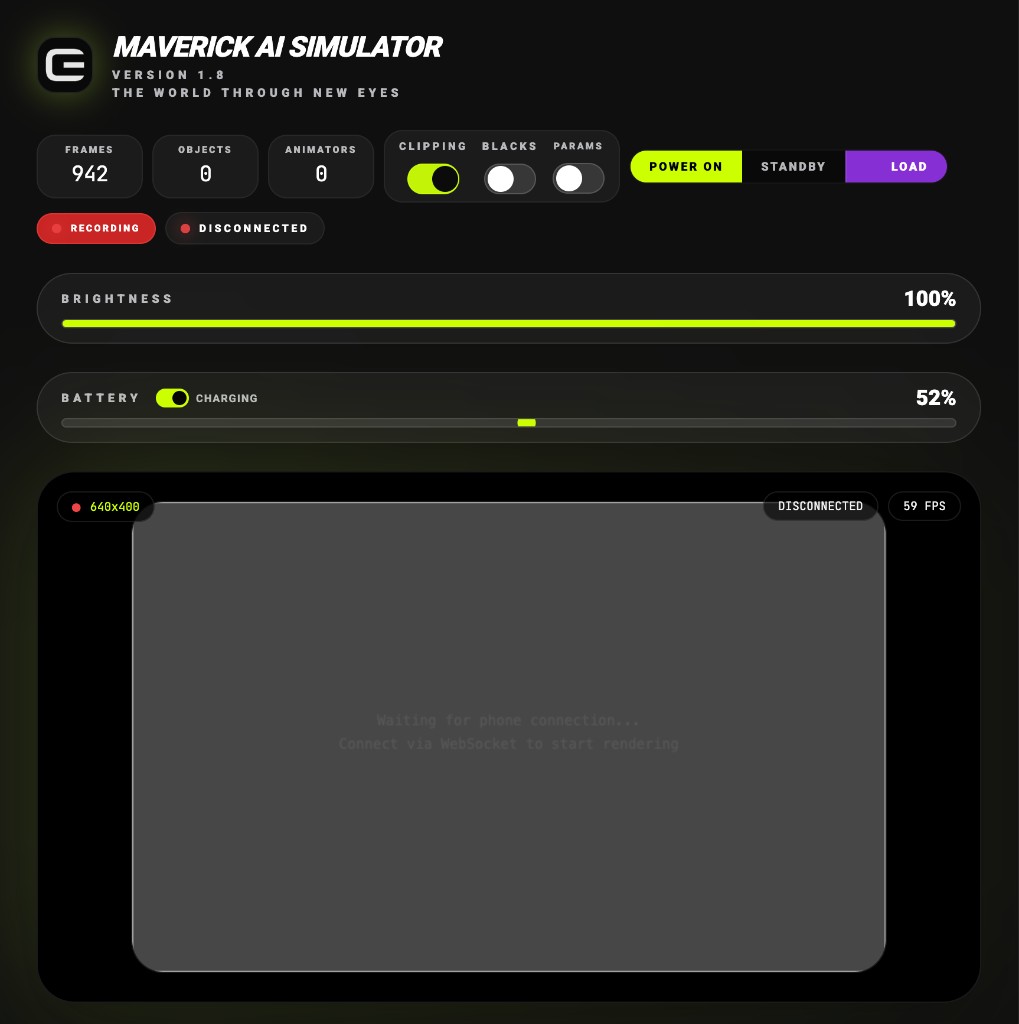
The simulator dashboard provides:
| Area | Description |
|---|---|
| Viewport | 640×400 canvas rendering the glasses display output |
| Status | Connected / Disconnected indicator, resolution, FPS and screen state |
| Stats | FPS, objects and animators currently on the glasses |
| View controls | Clipping (off zooms out to reveal off-screen content), Blacks, Transparent, Params, Virtual Display |
| Power | Power On / Standby, and a hold-to-shutdown power button |
| Brightness | Display brightness, ambient light level and the auto-brightness state |
| Battery | Level slider and charging toggle - simulates battery state reported to the SDK |
| Sensors | Yaw / pitch / roll sliders driving the inertial (LOS) stream |
| Touch injection | Tap, long tap and swipe events, also bound to the keyboard |
| Camera preview | Frames the AIVision sensor is streaming |
| Microphone | Microphone level, gain override and echo handling |
| Scene objects | Live draw-order tree of everything on the glasses |
| Asset cache | Images and fonts uploaded to the glasses, and the active slots |
| Reported FW version | The firmware version the simulator reports to the SDK |
| Record & Replay | Record a session, and load it later to replay it |
The recordings and PNG screenshots are saved under the simulator's output directory.
Running
Double-click the macOS .app or run the Linux executable directly.
The web dashboard opens at http://127.0.0.1:8765/.
The SDK connects to the simulator WebSocket endpoint at ws://<host-ip>:8765/ws.
Connecting the Simulator
Ensure that you have properly set up your API key before connecting the simulator.
Configuring
The SDK handles the communication with the simulator via WebSocket transport.
Use Evs.glassesService.setConfiguredSimulator with the IP address only:
By default, setConfiguredSimulator also calls connect() automatically. To configure without connecting immediately, pass autoConnect = false.
To switch back to Bluetooth after using the simulator:
Connecting
In order to connect the simulator, it should be:
- Running and active (web dashboard shows "Waiting for phone connection...")
- Not connected to another application
- No firewall is blocking the simulator communication (port 8765)
- Reachable on the same network as your application
Stock UI
The SDK built-in scanning UI includes an option to select a simulator.
To open the scanning Stock UI with simulator support:
In the configure/scan screen, select the Simulator option and enter the IP address of the computer running the simulator. The simulator is not auto-discovered - you must manually provide the host IP address.
Limitations
- The simulator renders the glasses display and simulates the sensors around it, including ambient light. Proximity is not simulated.
- The AIVision sensor and the microphone use the PC's built-in camera and microphone when available.
- The simulator does not support firmware update.
LOS and Eye Tracking
Both are simulated from the dashboard, so an app that reacts to head movement or gaze can be developed without wearing the glasses.
| Feature | How the dashboard drives it |
|---|---|
| LOS (head orientation) | The Sensors panel's yaw, pitch and roll sliders drive the inertial stream, exactly as the glasses would report it. Reset returns the head to centre. |
| Eye tracking (gaze) | Once your app enables the eye tracker, click anywhere on the viewport to place the gaze point, or drag to move it continuously. A marker shows where it is. |
The eye tracker has to be enabled by the app
The viewport only accepts gaze clicks while the eye tracker is on, which means your app has
called Evs.eyeTrackerService.enableEyeTracker(). Registering an analyzer does not enable it
on its own. Until then the clicks do nothing.
The simulator reports the gaze position only. Eye-feature analyzers (blink, left/right
gaze and anything else built on M2EyeFeatureAnalyzer) run on the eye-camera frames, which
the simulator does not produce - so a registered analyzer stays silent against the simulator
and needs real glasses to deliver results.
See Also
- Communication - BLE connection and data exchange
- Troubleshooting - Common issues and solutions